

アナログTVのSmartTV化からの続きの投稿です。
1.MPEGライセンス設定(/boot/config.txt)
※RasPi4からは、MPEGハードエンコーダが不要になり、別建てで記事をポストします。
http://www.raspberrypi.com/mpeg-2-license-key/
/boot/config.txtの編集
decode_MPG2は、一度本体のotp45番地に書き込まれれば、不要になります。
 追加:
  decode_MPG2=0xxxxxxxxx
 変更:
  framebuffer_width=1440
  framebuffer_height=1080
2.HDUSチューナーの登録
(PX-S1UDチューナーの場合は、コメント投稿を参照)
sudo apt-get install git make g++ libusb-dev libboost-dev \
    pkg-config  libglib2.0-dev libpcsclite-dev \
    libboost-filesystem-dev libboost-thread-dev
git clone git://github.com/stz2012/recfriio.git
cd recfriio/recfriior5

PLEX PX-S1UDV2.0
・Makefileを変更する
TSSL = -DTSSL ⇒ コメント化
gccコンパイルオプション追加
-march=armv7-a -mtune=cortex-a9 -mfpu=neon
LIBSに-lboost_systemを追加。0924版では、-lboost-thread-mtの-mtを削除
・Udp.cpp 変更
以下の行が無ければ追加
#include <unistd.h>
・コンパイル作業
 make -j 4
 cd ../as11loader
 make -j 4
 cd ..
 sudo cp recfriior5/recfriio arib25/b25 as11loader/as11loader /usr/local/bin
・HDUS関係ファイル置き場から
SKNET_AS11Loader.sysを入手して/usr/local/binに複写
 sudo gpasswd -a www-data video
 sudo touch /var/lock/friiodetect
 sudo chmod 664 /var/lock/friiodetect
 sudo chown www-data:video /var/lock/friiodetect
・/etc/udev/rules.d/10-local.rulesに以下の記述を追加
# HDUS
SUBSYSTEM=="usb", ACTION=="add", \
ATTRS{idVendor}=="1738", ATTRS{idProduct}=="5211", \
RUN+="/bin/sh -c 'cd /usr/local/bin;./as11loader'"
SUBSYSTEM=="usb", ENV{DEVTYPE}=="usb_device", \
ATTRS{idVendor}=="3275", ATTRS{idProduct}=="6051", \
MODE="0664", GROUP="video"
sudo /etc/init.d/udev restart
3.ICカードのドライバをインストール
DNI SCR80の場合は、ミニBCASカードも可。
 sudo apt-get update
 sudo apt-get upgrade
 sudo apt-get install pcscd pcsc-tools libpcsclite-dev
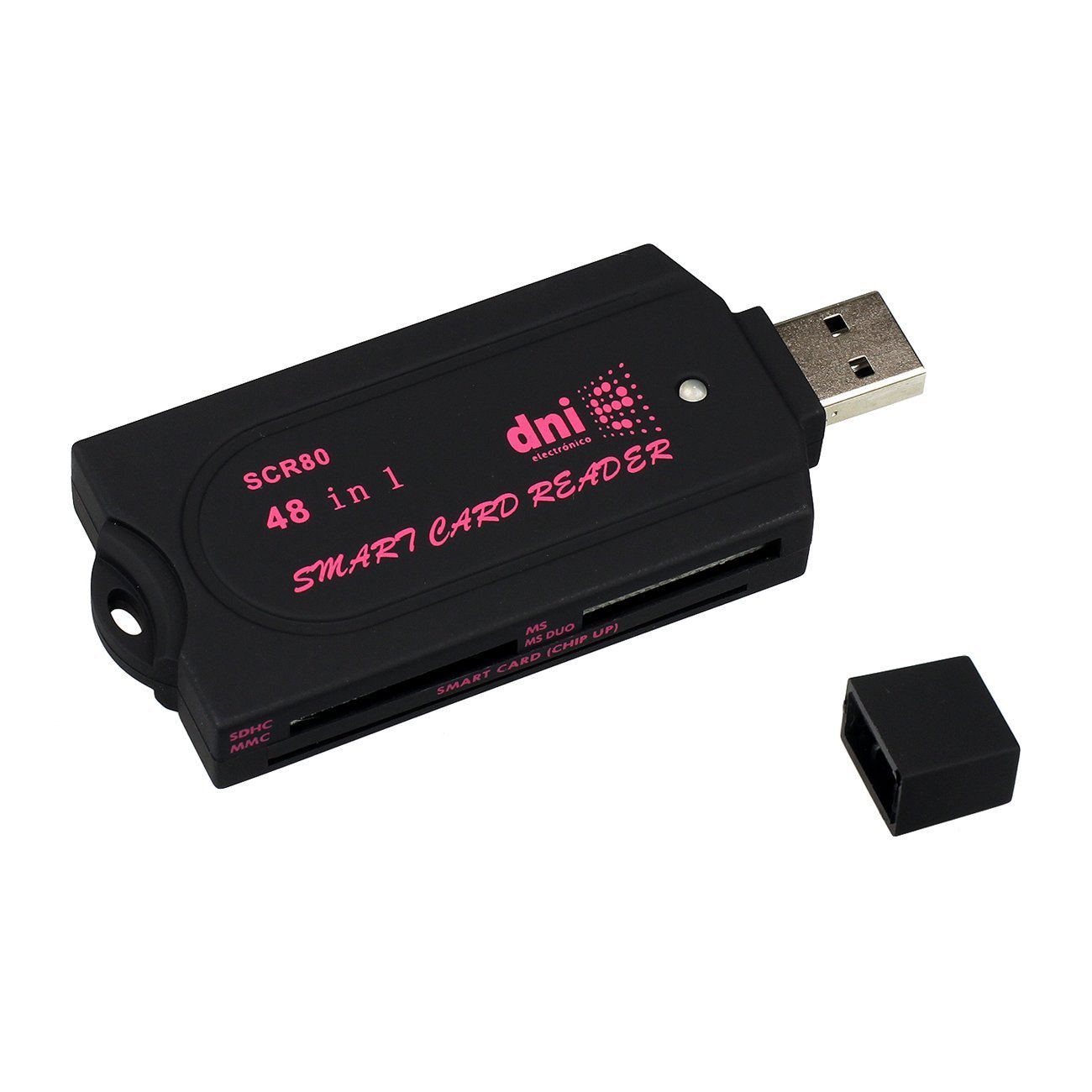
DNI SCR80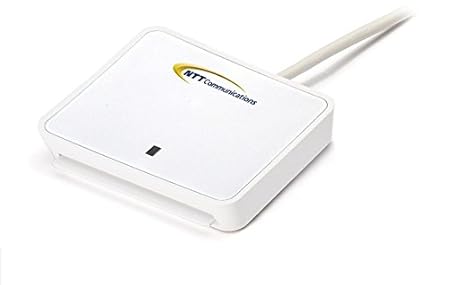 NTT-com CLOUD2700
次の問い合わせが出たならば、
Configuration file `/etc/libccid_Info.plist’
The default action is to keep your current version.
*** libccid_Info.plist (Y/I/N/O/D/Z) [default=N] ?
ここでNにしておいて、後で次のファイルを追加する。
NTTのカードリーダーの認識追加
/etc/libccid_Info.plistの編集
ifVendorID以下から最終まで、次のソースで置換する。
         <key>ifdVendorID</key>
        <array>
                <string>0x04E6</string>
                <string>0x04E6</string>
                <string>0x0BDA</string>
        </array>
        <key>ifdProductID</key>
        <array>
                <string>0x511A</string>
                <string>0x5810</string>
                <string>0x0169</string>
        </array>
        <key>ifdFriendlyName</key>
        <array>
                <string>SCM Microsystems Inc. SCR 3310 NTTcom</string>
                <string>NTTcom CLOUD2700</string>
                <string>DNI ele SCR80</string>
        </array>
        <key>Copyright</key>
        <string>This driver is protected by terms of the GNU Lesser General Public License version 2.1, or (at your option) any later version.</string>
ここで再起動し、ログインする。
pcsc_scanの実行
Japanese Chijou Digital B-CAS Card (pay TV)が表示されればOK
Ctrl+Cで終了。
4.Mplayerのインストール
最終的にomxplayerの動画再生支援機構を使ったのですが・・
主音声選択の時は、Mplayerを使っています。
 sudo apt-get install mplayer alsa-base alsa-utils  \
 pulseaudio mpg123
・マルチスレッド化で加速
mkdir ~/.mplayer
vi ~/.mplayer/config
# Write your default config options here!
lavdopts=threads=4
・audio moduleのカーネルへの追加(su -後)jessieでは不要
modprobe snd_bcm2835
echo ‘snd_bcm2835’ >> /etc/modules
・asound.conf の書き込み
vi /etc/asound.conf
   pcm.!default {
   type hw
   card 0
   }
   ctl.!default {
   type hw
   card 0
   }
・audio without ALSA の設定方法
amixer cset numid=3 1 #Analog
amixer cset numid=3 2 #HDMI
5.TV起動のShellスクリプト(TV.sh)
動画再生支援機構を使って、完璧に表示(CPU負荷率:12~13%)。
さらに、二か国語の時、主音声・副音声を選択出来るようにする。
NHKの多重音声にも対応しました。
なお、初期設定として次の二つが存在することを前提としています。
echo export AOUT=local >.aout
echo export BILING=yes >.biling
TV.sh
#!/bin/bash
source ~/.aout
if [ "$AOUT" != "local" ]; then
vol=200
geo="318x72+0+0"
DOUT="both --display 5 --win 0,0,1920,1058"
else
vol=200
geo="132x29+0+0"
DOUT="local --display 4 --win 0,0,800,458"
fi
CH=$1
CHN=$2
export DISPLAY=:0.0
TARGET="recdvb|mplayer"
pkill -9 "${TARGET}"
source ~/.biling
[ -p /tmp/mpegpipe ] || mkfifo /tmp/mpegpipe # 名前付きパイプを作る
xset -display :0.0 dpms 0 0 0 -dpms s off
while :;do
if [ "$BILING" = "yes" ]; then
sleep 1;recdvb --b25 --strip ${CH} - /tmp/mpegpipe &
xterm -title $CHN -geometry ${geo} -xrm \
'XTerm*VT100.translations: #override \
<key>0xFF51: string(j) \
<key>0xFF53: string(k) \
<key>0x1008FF11: string(-) \
<key>0x1008FF13: string(+) \
<key>0x1008FF14: string(p)'\
-e "omxplayer --live --vol -${vol} -o ${DOUT} /tmp/mpegpipe"
elif [ "$BILING" = "sel" ]; then
sleep 1;recdvb --b25 --strip --http 8080 ${CH} &
(echo switch_audio -2\n >/tmp/mpegpipe) &
mplayer -vo x11 -ao alsa -forceidx -mc 0 -framedrop -nocache -input conf=TVinput.conf\
-fs -x 1440 -y 1080 -delay 0.5 -af volume=18 -input file=/tmp/mpegpipe http://localhost:8080/${CH}/
fi
if [ ! -p /tmp/mpegpipe ]; then
break
fi
NCH=`cat tmp_file`
if [ "$NCH" != "" ];then
CH=`echo $NCH | cut -c 1-2`
CHN=`echo $NCH | cut -c 3-`
fi
done
xset -display :0.0 dpms 600 600 600 s on
pkill -9 "${TARGET}"
xrefresh # 画面を戻す
【追記】omxplayer動作中はopenboxがキー入力をネグレクトするため、xtermをインストールし、ついでに、KBのV+,V-も有効にして、配下でomxplayerを動作させている。
AOUTはデスクトップ・アイコンで選択した値。
-geometry 132×29+0+0及び –win 0,0,800,458
の指定は、専用7’LCDのときのみ。
専用LCDのとき、KBをやめ全てタッチパネル
操作にする方法は、コメント投稿を参照する。
~/.mplayer/TVinput.conf の4行を次のように変更した。
RIGHT balance +1
LEFT balance -1
DOWN switch_angle
UP switch_audio
↑で音声トラック、↓で映像トラックを選択、多重音声の時←で日本語、→で外国語
・地デジ・チャンネル表
http://www.maspro.co.jp/contact/channel.pdf#page=4
・Shellスクリプトの呼び出し
sh -c ‘TV.sh nn 放送局名’ ← nn:チャンネル番号
6.ホーム画面の作り方
http://www.mztn.org/rpi/rpi35.html#i7

SmartTVのホーム画面
sudo apt-get install lxshortcut xterm
lxshortcut –display=:0.0 -o myapp.desktop
【例】
[Desktop Entry]
Encoding=UTF-8
Type=Application
Name=TV視聴(NHK)
Name[ja_JP]=TV視聴(NHK)
Icon=screensaver
Exec=sh -c '~/TV.sh 27 NHK総合'
Comment[ja_JP]=NHK
StartupNotify=true
[Desktop Entry]
Encoding=UTF-8
Type=Application
Name=RCA音声
Name[ja_JP]=RCA音声
Icon=qjackctl
Exec=sh -c 'amixer cset numid=3 2;echo export AOUT=hdmi > ~/.aout;cp ~/sout2.* ~/De*/sout1.desktop'
Comment[ja_JP]=
StartupNotify=true
【番外編】
・YouTube閲覧のPiTVの操作をTVと共通にする。
RaspberryPiTV/node_modules/omxcontrol/index.js を編集
exec('omxplayer -o hdmi "'+fn+'"' < '+pipe,function(error, stdout, stderr) {^M
console.log(stdout);^M
});^M
exec('echo . > '+pipe);^M
}^M
};^M
を次のように変更する。
exec('source ~/.aout;vol=2000;if [ \"$AOUT\" = local ]; then vol=200;fi;xterm -fullscreen -xrm '+
'\"XTerm*VT100.translations: #override\\n<key>0x1008FF11:string(-)\\n<key>0x1008FF13:string(+)\\n<key>0x1008FF14:string(p)\"'+
' -e omxplayer --win 0,0,800,458 -o ${AOUT} --vol -${vol} "'+fn+'"',function(error, stdout, stderr) {
console.log(stdout);
});
// exec('echo . > '+pipe);
}
};
・PiTVの起動シェル
#!/bin/bash
source ~/.aout
node /home/pi/RaspberryPiTV/app.js
sleep 1
chromium-browser --kiosk http://localhost:8080/remote
・インターネットラジオRazikoの音声ボリューム操作をTVと共通にする。
raziko.shを編集
rtmpdump -v \
         -r ${url_parts[0]} \
         --app ${url_parts[1]} \
         --playpath ${url_parts[2]} \
         -W $playerurl \
         -C S:"" -C S:"" -C S:"" -C S:$authtoken \
         --live\
         | mplayer -
 を次のように変更する。
[ -p /tmp/mpegpipe ] || mkfifo /tmp/mpegpipe # 名前付きパイプを作る
rtmpdump -v \
         -r ${url_parts[0]} \
         --app ${url_parts[1]} \
         --playpath ${url_parts[2]} \
         -W $playerurl \
         -C S:"" -C S:"" -C S:"" -C S:$authtoken \
         --live -o /tmp/mpegpipe  & \
xterm -bg skyblue -xrm \
        'XTerm*VT100.translations:     #override \
        <key>0x1008FF11:        string(-) \
        <key>0x1008FF13:        string(+) \
        <key>0x1008FF14:        string(p)'\
 -e "omxplayer --live --vol -1400 --audio_queue 2 -o ${AOUT} /tmp/mpegpipe"
・録画用USBメモリやSDカードのマウント自動化
/etc/udev/rules.d/11-media-by-label-auto-mount.rulesに以下を書く
KERNEL!="sd[a-z][0-9]", GOTO="media_by_label_auto_mount_end"
# Import FS infos
IMPORT{program}="/sbin/blkid -o udev -p %N"
# Get a label if present, otherwise specify one
ENV{ID_FS_LABEL}!="", ENV{dir_name}="%E{ID_FS_LABEL}"
ENV{ID_FS_LABEL}=="", ENV{dir_name}="usbhd-%k"
# Global mount options
ACTION=="add", ENV{mount_options}="relatime"
# Filesystem-specific mount options
ACTION=="add", ENV{ID_FS_TYPE}=="vfat|ntfs", ENV{mount_options}="$env{mount_options},utf8,gid=100,umask=002"
# Mount the device
ACTION=="add", RUN+="/bin/mkdir -p /media/%E{dir_name}", RUN+="/bin/mount -o         $env{mount_options} /dev/%k /media/%E{dir_name}"
# Clean up after removal
ACTION=="remove", ENV{dir_name}!="", RUN+="/bin/umount -l /media/%E{dir_name}",     RUN+="/bin/rmdir /media/%E{dir_name}"
# Exit
LABEL="media_by_label_auto_mount_end"
ピンバック: Raspberry Pi2による、アナログTVのSmartTV化 | e在京白堊会
タッチパネルのアプリランチャーにTV終了ボタンを置くには、次のTVoff.shスクリプトとTVon.desktopを用意し、ランチャーに取り付ける。
TVoff.sh
1)sudo cp TVon.desktop /usr/share/applications/
2)タイトルバーの右クリックで、「パネルのアイテム追加」を選択
3)「アプリケーション・ランチャー」の「設定」をクリック
4)「その他」の配下の「TV視聴」を選択し、「追加」「OK」
(Main Menu Editorの設定で「その他」を表示対象にしておく)
HDMIやLCDをスリープさせないために・・・
sudo vi /etc/lightdm/lightdm.conf
[SeatDefault] の下に記述する
xserver-command=X -s 0 dpms
保存して再起動する。
スリープ禁止にしたり、元に戻したりを繰り返したいときは、コマンドを使う。
xset -display :0.0 dpms 0 0 0 -dpms s off
xset -display :0.0 dpms 600 600 600 s on
YouTubeなどを本当のストリームで視聴するために、
次のようにlivestreamer活用に変えることができます。
(画面サイズはLCDの例)
1)app.jsのvideoのソケット関数を次のように変更
  , exec = require('child_process').exec;
 socket.on("video", function(data){
    if( data.action === "play"){
      var id = data.video_id,
         url = "http://www.youtube.com/watch?v="+id;
      var runShell = exec('xterm -geometry 132x35+0+1 -xrm '+
       '\"XTerm*VT100.translations: #override\\n'+
        '<Key>0x1008FF11:string(-)\\n<Key>0x1008FF13:string(+)\\n'+
        '<Key>0x1008FF14:string(p)\"'+' -e "sh -c '+
        "'"+'/home/pi/RaspberryPiTV/livestream.sh '+url+'\'"',
        function (error, stdout, stderr) {
          if(stderr !== null){
              console.log('stderr: ' + stderr);
          }
        });
    }
 });
2)livestream.shの作成
#!/bin/bash
livestreamer $1 720p --player omxplayer --fifo --player-args "--vol -1000 --win \"0 30 800 450\" {filename}"
※livestreamerのインストール
sudo apt-get install python-pip
sudo pip install livestreamer
タッチパネルのみでのTV操作
btnBar.py (Desktopでのスタートは、このプログラムを起動する)
#! /usr/bin/env python
# coding:utf-8

from Tkinter import *
import os, sys, subprocess, signal

BGS = [('選 局','sel'),('音量+','volumeup'),('音量-','volumedown'),('字幕有','showsubtitles'),  \
        ('字幕無','hidesubtitles'), ('ポーズ','pause'), ('再選局','stop'),('終 了',0)]

def chgAndExit(command) :
        if command == 0:
                subprocess.Popen(['/home/pi/TVoff.sh'])
                root.destroy()
                exit
        elif command == "sel":
                subprocess.Popen(['/home/pi/dbuscontrol.sh','shrink'])
                subprocess.call(['python','/home/pi/button.py'])
        else:
                subprocess.Popen(['/home/pi/dbuscontrol.sh',command])
#       root.destroy()

class MyFrame(Frame):

    def __init__(self, master=None):
        Frame.__init__(self, master)
        self.master.title('コントロール')
        f_button = Frame(self)
        f_button.pack(side=LEFT, padx=5, pady=5)

        for name, code in BGS:
            b = Button(f_button, height=2, text=name,  \
                command= lambda comm=code:chgAndExit(comm))
            b.pack(fill=Y,side=LEFT)
##------------------------------------------------
if __name__ == '__main__':
    root=Tk()
    f = open("/home/pi/.aout")
    data=f.read()
    mode=data.split("=")
    f.close()
    if mode[1][0] == 'h':
      root.geometry("1920x40+0+1022")
    else:
      root.geometry("800x40+0+422")
    root.option_add('*Button.font', u'IPAゴシック 12');
    f = MyFrame()
    f.pack()
    subprocess.call(['python','/home/pi/button.py'])

    f.mainloop()
button.py
#! /usr/bin/env python
# coding:utf-8

from Tkinter import *
import os, subprocess

BGS = [('NHK総合',27),('NHKEテレ',26),('日本テレビ',25),('テレビ朝日',24), ('TBS',22),        \
        ('フジテレビ',21),('テレビ東京',23),('東京MX',16),('放送大学',28),('続 行',0)]

def chgAndExit(ch,station) :
        if ch == 0:
                subprocess.Popen(['/home/pi/dbuscontrol.sh','normal'])
        else:
                subprocess.Popen(['/home/pi/chgCH.sh',str(ch),station])
        root.destroy()
        exit
class MyFrame(Frame):

    def __init__(self, master=None):
        Frame.__init__(self, master)
        self.master.title('放送局を選択')
        f_button = Frame(self)
        f_button.pack(side=LEFT, padx=5, pady=5)

        for name, code in BGS:
            b = Button(f_button, height=2, text=name, \
                command= lambda ch=code,station=name:chgAndExit(ch,station))
            b.pack(fill=X)
##------------------------------------------------
if __name__ == '__main__':
    root=Tk()
    f = open("/home/pi/.aout")
    data=f.read()
    mode=data.split("=")
    f.close()
    if mode[1][0] == 'h':
      root.geometry("98x486+1820+50")
    else:
      root.geometry("98x446+700+10")
    root.option_add('*Button.font', u'IPAゴシック 10')
    f = MyFrame()
    f.pack()
    f.mainloop()
chgCH.sh
#!/bin/bash
TARGET="recfriio"
#TARGET="recfdvb"
CH=$1
if [ "${CH}" = "" ]; then
  CH=27
fi
echo $CH$2>tmp_file
count=`ps -ef | grep omxplayer | grep -v grep | wc -l`
if [ $count = 0 ]; then
  sh -c "~/TV.sh $CH $2"
  exit
fi
pkill -9 "$TARGET"
なお、dbuscontrol.sh を次のように拡張しています。
#!/bin/bash #set -x count=`ps -ef | grep omxplayer | grep -v grep | wc -l` if [ $count = 0 ]; then exit fi OMXPLAYER_DBUS_ADDR="/tmp/omxplayerdbus.${USER}" OMXPLAYER_DBUS_PID="/tmp/omxplayerdbus.${USER}.pid" export DBUS_SESSION_BUS_ADDRESS=`cat $OMXPLAYER_DBUS_ADDR` export DBUS_SESSION_BUS_PID=`cat $OMXPLAYER_DBUS_PID` [ -z "$DBUS_SESSION_BUS_ADDRESS" ] && { echo "Must have DBUS_SESSION_BUS_ADDRESS" >&2; exit 1; } case $1 in shrink) dbus-send --print-reply=literal --session --dest=org.mpris.MediaPlayer2.omxplayer /org/mpris/MediaPlayer2 org.mpris.MediaPlayer2.Player.VideoPos objpath:/not/used string:"0 36 700 420" >/dev/null ;; normal) dbus-send --print-reply=literal --session --dest=org.mpris.MediaPlayer2.omxplayer /org/mpris/MediaPlayer2 org.mpris.MediaPlayer2.Player.VideoPos objpath:/not/used string:"0 0 800 458" >/dev/null ;; status) duration=`dbus-send --print-reply=literal --session --reply-timeout=500 --dest=org.mpris.MediaPlayer2.omxplayer /org/mpris/MediaPlayer2 org.freedesktop.DBus.Properties.Duration` [ $? -ne 0 ] && exit 1 duration="$(awk '{print $2}' <<< "$duration")" position=`dbus-send --print-reply=literal --session --reply-timeout=500 --dest=org.mpris.MediaPlayer2.omxplayer /org/mpris/MediaPlayer2 org.freedesktop.DBus.Properties.Position` [ $? -ne 0 ] && exit 1 position="$(awk '{print $2}' <<< "$position")" playstatus=`dbus-send --print-reply=literal --session --reply-timeout=500 --dest=org.mpris.MediaPlayer2.omxplayer /org/mpris/MediaPlayer2 org.freedesktop.DBus.Properties.PlaybackStatus` [ $? -ne 0 ] && exit 1 playstatus="$(sed 's/^ *//;s/ *$//;' <<< "$playstatus")" paused="true" [ "$playstatus" == "Playing" ] && paused="false" echo "Duration: $duration" echo "Position: $position" echo "Paused: $paused" ;; volume) volume=`dbus-send --print-reply=literal --session --reply-timeout=500 --dest=org.mpris.MediaPlayer2.omxplayer /org/mpris/MediaPlayer2 org.freedesktop.DBus.Properties.Volume ${2:+double:}$2` [ $? -ne 0 ] && exit 1 volume="$(awk '{print $2}' <<< "$volume")" echo "Volume: $volume" ;; pause) dbus-send --print-reply=literal --session --dest=org.mpris.MediaPlayer2.omxplayer /org/mpris/MediaPlayer2 org.mpris.MediaPlayer2.Player.Action int32:16 >/dev/null ;; stop) dbus-send --print-reply=literal --session --dest=org.mpris.MediaPlayer2.omxplayer /org/mpris/MediaPlayer2 org.mpris.MediaPlayer2.Player.Action int32:15 >/dev/null ;; seek) dbus-send --print-reply=literal --session --dest=org.mpris.MediaPlayer2.omxplayer /org/mpris/MediaPlayer2 org.mpris.MediaPlayer2.Player.Seek int64:$2 >/dev/null ;; setposition) dbus-send --print-reply=literal --session --dest=org.mpris.MediaPlayer2.omxplayer /org/mpris/MediaPlayer2 org.mpris.MediaPlayer2.Player.SetPosition objpath:/not/used int64:$2 >/dev/null ;; setalpha) dbus-send --print-reply=literal --session --dest=org.mpris.MediaPlayer2.omxplayer /org/mpris/MediaPlayer2 org.mpris.MediaPlayer2.Player.SetAlpha objpath:/not/used int64:$2 >/dev/null ;; setvideopos) dbus-send --print-reply=literal --session --dest=org.mpris.MediaPlayer2.omxplayer /org/mpris/MediaPlayer2 org.mpris.MediaPlayer2.Player.VideoPos objpath:/not/used string:"$2 $3 $4 $5" >/dev/null ;; setvideocroppos) dbus-send --print-reply=literal --session --dest=org.mpris.MediaPlayer2.omxplayer /org/mpris/MediaPlayer2 org.mpris.MediaPlayer2.Player.SetVideoCropPos objpath:/not/used string:"$2 $3 $4 $5" >/dev/null ;; setaspectmode) dbus-send --print-reply=literal --session --dest=org.mpris.MediaPlayer2.omxplayer /org/mpris/MediaPlayer2 org.mpris.MediaPlayer2.Player.SetAspectMode objpath:/not/used string:"$2" >/dev/null ;; hidevideo) dbus-send --print-reply=literal --session --dest=org.mpris.MediaPlayer2.omxplayer /org/mpris/MediaPlayer2 org.mpris.MediaPlayer2.Player.Action int32:28 >/dev/null ;; unhidevideo) dbus-send --print-reply=literal --session --dest=org.mpris.MediaPlayer2.omxplayer /org/mpris/MediaPlayer2 org.mpris.MediaPlayer2.Player.Action int32:29 >/dev/null ;; volumeup) dbus-send --print-reply=literal --session --dest=org.mpris.MediaPlayer2.omxplayer /org/mpris/MediaPlayer2 org.mpris.MediaPlayer2.Player.Action int32:18 >/dev/null ;; volumedown) dbus-send --print-reply=literal --session --dest=org.mpris.MediaPlayer2.omxplayer /org/mpris/MediaPlayer2 org.mpris.MediaPlayer2.Player.Action int32:17 >/dev/null ;; togglesubtitles) dbus-send --print-reply=literal --session --dest=org.mpris.MediaPlayer2.omxplayer /org/mpris/MediaPlayer2 org.mpris.MediaPlayer2.Player.Action int32:12 >/dev/null ;; hidesubtitles) dbus-send --print-reply=literal --session --dest=org.mpris.MediaPlayer2.omxplayer /org/mpris/MediaPlayer2 org.mpris.MediaPlayer2.Player.Action int32:30 >/dev/null ;; showsubtitles) dbus-send --print-reply=literal --session --dest=org.mpris.MediaPlayer2.omxplayer /org/mpris/MediaPlayer2 org.mpris.MediaPlayer2.Player.Action int32:31 >/dev/null ;; getsource) source=$(dbus-send --print-reply=literal --session --reply-timeout=500 --dest=org.mpris.MediaPlayer2.omxplayer /org/mpris/MediaPlayer2 org.freedesktop.DBus.Properties.GetSource) echo "$source" | sed 's/^ *//' ;; *) echo "usage: $0 status|pause|stop|seek|volumeup|volumedown|setposition [position in microseconds]|hidevideo|unhidevideo|togglesubtitles|hidesubtitles|showsubtitles|setvideopos [x1 y1 x2 y2]|setvideocroppos [x1 y1 x2 y2]|setaspectmode [letterbox,fill,stretch,default]|setalpha [alpha (0..255)]" >&2 exit 1 ;; esac<PX-S1UDチューナーの場合>
Jessieからは、このチューナーのドライバーが標準搭載されているため、インストールが
容易になっている。ICカードのドライバー導入後、次を実施する。
<PX-BCUDチューナーの場合>
このチューナーのドライバーはrpi-4.7.yからの標準搭載らしいので、それまでは、
次のようにドライバーのコンパイルをし、インストールした後、上記2)を実施する。
なお、unameで4.4.13 4.4.21 4.4.22であればコンパイル済みであり、PXdrv.shの実行でインストールできる。
BCASをSoftcasで試したい場合は、ICカードリーダーの導入部分を変える。
1)softcasをダウンロードする。
$ wget http://www.wazoku.net/softcas.zip
$ unzip softcas.zip
$ cd softcas
2)移動したフォルダーでwinscard.cppとMakefileを次のファイルに置き換える。
$ wget -O Makefile https://pastebin.com/raw/FQdSixkB
$ wget -O winscard.cpp https://pastebin.com/raw/5144Ah9g
3)ヘッダの変更
・/usr/include/PCSC/winscard.hの41行目にPCSC/を加える。
・/usr/include/PCSC/pcsclite.hの45行目にPCSC/を加える。
・/usr/include/PCSC/pcsclite.hの最終行に次を加える。
const SCARD_IO_REQUEST g_rgSCardT1Pci = { SCARD_PROTOCOL_T1, sizeof(SCARD_IO_REQUEST) };
・winscard.cppのLONG SCardGetStatusChangeで始まる行のLPSCARD_READERSTATE_Aの部分をLPSCARD_READERSTATEに変える。
・winscard.cppの98行目をコメント化する。
// SCARD_IO_REQUEST g_rgSCardT1Pci;
4)makeを実施する。
5)出来上がったライブラリーを、次のようにコピーする
$ sudo cp libpcsclite.so.1.0.0 /usr/lib/arm-linux-gnueabihf/libpcsckai.so (64bitOSでは、/usr/lib/aarch64-linux-gnu/libpcsckai.so)
6)pcファイルを作成する。
$ cd /usr/lib/arm-linux-gnueabihf/pkgconfig
(64bitOSでは、/usr/lib/aarch64-linux-gnu/pkgconfig)
$ sudo cp libpcsclite.pc libpcsckai.pc
$ sudo vi libpcsckai.pc
11行目のLibs: -L${libdir} -lpcscliteの「lite」を「kai」とし、保存する
7)前コメント通り進めるが、2)で、libarib25に移動したあと、次の変更を実施しmakeする
src/Makefileの
PCSC_CFLAGS ?= `pkg-config libpcsclite –cflags`
PCSC_LDLIBS ?= `pkg-config libpcsclite –libs`
の「lite」2か所を「kai」とし、保存する
winscard.iniの2018.4.16時点のデータは次の通り
[WOWOW]
BID=02
KW0=06 4e 2a bc 41 c3 2f a8 48
KW1=07 52 45 21 c0 4e bd 59 de
[Star Channel HD]
BID=03
KW0=04 19 07 70 12 19 09 76 07
KW1=03 19 44 06 20 19 43 01 08
[SkyPerfecTV E2 / 110CS]
BID=17
KW0=06 d9 11 e0 19 9a 58 7e 91
KW1=05 62 7d 70 6f db 6c 00 bd
[NHK]
BID=1e
KW0=02 8d 82 06 c6 2e b1 41 0d
KW1=01 15 f8 c5 bf 84 0b 66 94
[Email]
BID=20
KW0=00 00 00 00 00 00 00 00 00
KW1=00 00 00 00 00 00 00 00 00
[NHK_Email]
BID=01
KW0=02 8d 82 06 c6 2e b1 41 0d
KW1=01 15 f8 c5 bf 84 0b 66 94
ピンバック: ラスパイで地デジのリアルタイム視聴をしてみた。
録画処理のための追加インストールと、注意点についてメモしておきます。
1)追加インストール
ibus-mozc postfix ntfs-3g
2)自動マウント
/etc/fstab に追加編集
PARTUUID=”e7ccba30-0efc-4bee-9c1c-f12f442b5f9e” /media/pi/video noauto 0 0
UUIDは、sudo blkid コマンドで得られる
3)留意点
RaspberryPi2では、USBバスパワーを増量させる方がよい(config.txt)
safe_mode_gpio=4
max_usb_current=1
cron編集と、録画視聴のsh を用意した。roku.sh recplay.sh
roku.sh実行時の追加行のサンプルは次の通り
59 20 10 05 * /home/pi/video_rec.sh 252 120 映画 [halt]
BS Japan/NHK BSの周波数シフト対応
vi recdvb-1.3.1/recpt1.c
preset_ch[NUM_PRESET_CH] = {
{ 101, “bs15”, 0x40f1 }, { 103, “bs15”, 0x40f2 },
{ 141, “bs13”, 0x40d0 }, { 151, “bs01”, 0x4010 },
{ 161, “bs01”, 0x4011 }, { 171, “bs03”, 0x4031 },
↓
preset_ch[NUM_PRESET_CH] = {
{ 101, “bs15”, 0x40f1 }, { 103, “bs03”, 0x4031 },
{ 141, “bs13”, 0x40d0 }, { 151, “bs01”, 0x4010 },
{ 161, “bs01”, 0x4011 }, { 171, “bs01”, 0x4012 },
make
sudo make install
ディズニー・チャンネル、BSアニマックス、スターチャンネル2、3 へも対応後。
↓
preset_ch[NUM_PRESET_CH] = {
{ 101, “bs15”, 0x40f1 }, { 103, “bs03”, 0x4031 },
{ 161, “bs01”, 0x4011 }, { 171, “bs01”, 0x4012 },
{ 200, “bs09”, 0x4091 }, { 201, “bs15”, 0x40f2 },
{ 234, “bs19”, 0x4730 }, { 236, “bs13”, 0x46d2 },
{ 255, “bs23”, 0x4771 }, { 256, “bs03”, 0x4632 },
winscard.iniの2019.6.11時点のデータは次の通り
[WOWOW]
BID=02
KW0=08 c6 3a 0c 76 a9 67 f2 d4
KW1=07 52 45 21 c0 4e bd 59 de
[Star Channel HD]
BID=03
KW0=04 19 07 70 12 19 09 76 07
KW1=05 64 36 03 60 09 46 64 82
[SkyPerfecTV E2 / 110CS]
BID=17
KW0=06 d9 11 e0 19 9a 58 7e 91
KW1=07 AE 35 76 13 86 8C BF 3F
2020では次のように変更予定
[WOWOW]
BID=02
KW0=08 c6 3a 0c 76 a9 67 f2 d4
KW1=09 45 72 6d 65 69 79 4d 65
[Star Channel HD]
BID=03
KW0=06 05 13 14 01 09 16 08 11
KW1=05 64 36 03 60 09 46 64 82
[SkyPerfecTV E2 / 110CS]
BID=17
KW0=08 e8 bd fc 5c fd 1c e7 89
KW1=07 ae 35 76 13 86 8c bf 3f